
Match
Description
This building block allows you to create an interactive activity in which the player must match elements from two different lists, which can be texts or cards containing images and/or texts. The goal is to correctly pair each element in column 1 with its corresponding element in column 2, forming one-to-one matches. This is a classic mechanic, ideal for reinforcing concepts, vocabulary, visual associations, and active learning.
Configuration
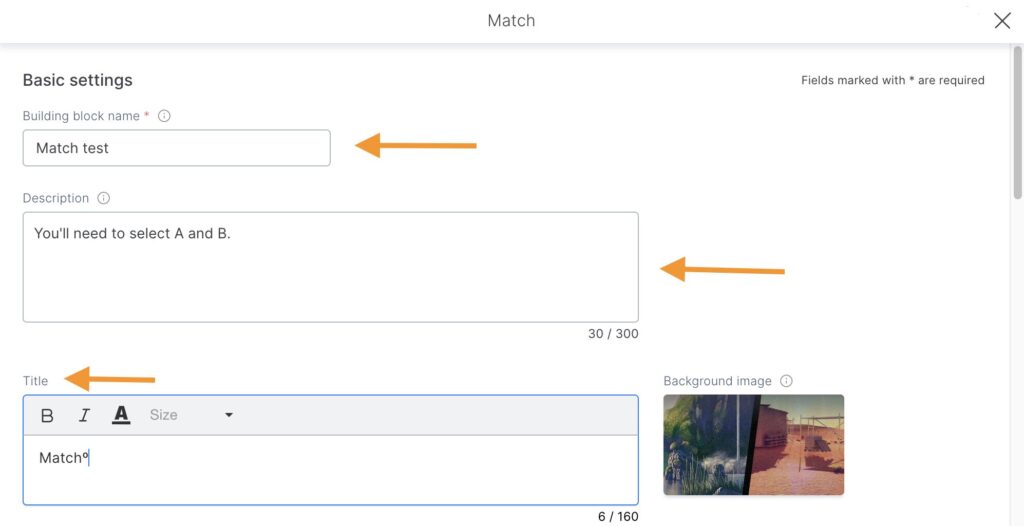
- Name the building block.
- Add the instructions to help the player complete the minigame.
- Insert a general title for the activity.
- If you wish, you can set a background image, which will appear when the puzzle is activated in the game.
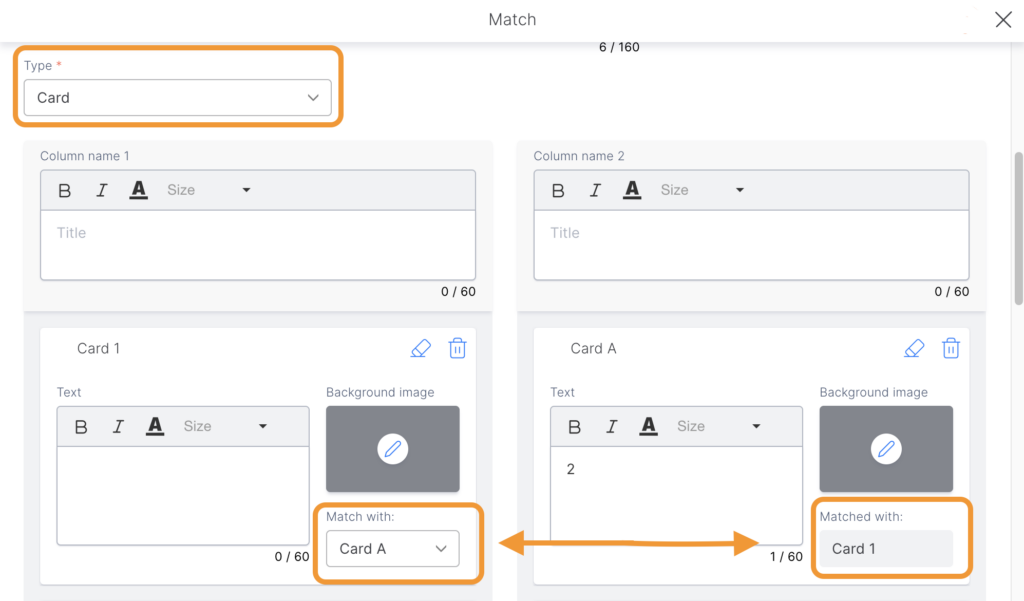
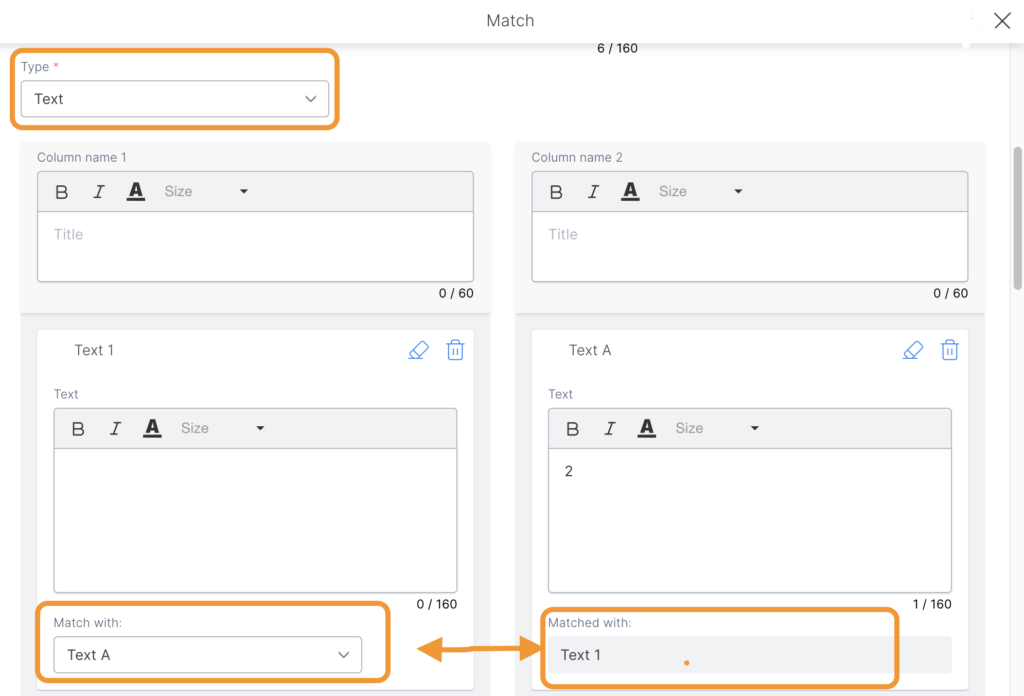
- Select the elements you want to match: card or text. Remember that this step is mandatory, as it defines the format of your activity.
- If you choose the “Text” option, you can add up to 160 characters per text.
- If you choose the “Card” option, you can add up to 60 characters per card.
- Insert one title per column (one for column 1 and one for column 2).
- Add the corresponding text or card to columns 1 and 2. You can create up to 10 texts (or cards).
- Match the elements in column 1 with those in column 2. You cannot link one element to multiple elements in the other column. Each match must be created individually. Some elements can remain unmatched. If the player selects them, it will count as an error.
- Activate the timer (optional) to limit the amount of time students have to complete the activity.
- In the “Result” tab, add specific feedback:
- Correct message: shown when the player selects the correct match. It can be customized for each pair.
- Error message: shown when the player selects the incorrect match.
- Time-out feedback: shown if the player runs out of time to complete the activity.
- Help options: the player can purchase a hint or the solution. They can solve the minigame by clicking the puzzle-shaped button. This prevents them from getting stuck in the game and enables them to continue, although points will be deducted if they use this option. To activate this option, check the appropriate boxes.
- Additional settings: you can mark “Building block required to finish level” and set a delay for the building block to appear, creating a pause in the flow.
With these steps, the activity is ready for players to enjoy and learn interactively.
Tips and tricks
- Choose the type of matching based on the goal you want to achieve.
- Text: ideal for definitions, vocabulary or theoretical concepts.
- Cards: ideal for visual associations or when an image helps illustrate the content.
- When creating the elements, make sure the information is clear and concise: use short sentences and limit each card to a maximum of 60 characters.
- Remember that each element must have a single logical match to avoid ambiguity.
- Customize titles and feedback. Titles should be clear and general for each column to guide the players effectively.
- Set the timer based on difficulty. For simple activities, use shorter times to encourage challenges. However, for complex activities, providing additional time is advisable for a smoother gameplay experience.
- Test and validate the activity before publishing. Check character limits, avoid duplicate elements, and ensure images display correctly across all devices.