
Managing & Setting Up My Account
Set up your profile
You can set up your account profile by following these steps:
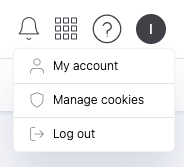
- Click on your initial at the top right corner.
- Click “My account.”
- Select the “Profile” option. Here you will find two different sections:
- Information about my profile. Here, you can change your first name, surname, language, and password. Your email address cannot be changed. If you wish to edit it, you will need to contact us.
- Notifications. Here, you can switch on or off the option to get email summaries of activity notifications. You can also set how often these notifications are sent.
Add a logo to personalize your Campus
If you like, you can add your company logo to personalize the Campus for your students.
Follow these steps:
- Click on your initial at the top right corner.
- Click “My account.”
- In “Account” / “Account Details,” click on “Change logo.”
Have your organization’s logo handy.
Important: the file must be no larger than 5 MB and be a jpg, png, svg, or gif.
- Choose your logo and use the tool offered to size it properly. Drag the corners to resize it.
- Click “Save.”
Edit your company’s name and tax ID number
If you like, you can edit your company’s name and associated tax ID number.
Just follow these steps:
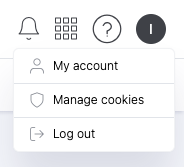
- Click on your initial at the top right corner.
- Click “My Account.”
- In “Account” / “Account Details,” click on “Edit information.”
- Change your company’s name and/or tax ID.
- Click “Update.”