The player’s view
Before building your game, it is important that you understand what the players will see and how they can interact with the game. Here we’ll explain all the controls, tools and indicators they will have in view.
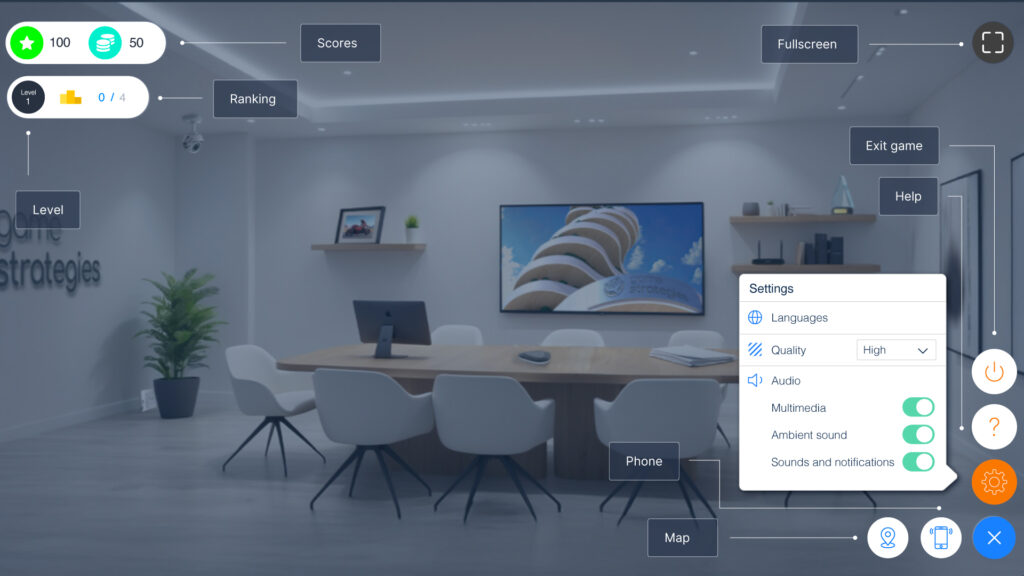
Top left: key game information
The top left of the screen displays the main indicators of the student’s progress:
- Score: shows the points they have earned so far.
- Level: indicates their current level and the total number of levels available.
- Leaderboard: shows their position in the overall ranking compared to other players.
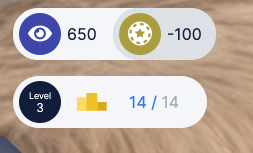
This information is automatically updated as they progress through the game.
Top right area: display
In the top right area, you will find the fullscreen option, which allows the players to expand the game to enjoy a more immersive, distraction-free experience.
They can also continue playing using the keyboard arrow keys or the ESC key when supported by the system.
Bottom right area: game management
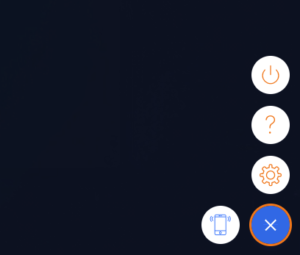
The bottom right area brings together most of the controls for managing their gameplay experience. From here, they can exit the game and return to the catalog whenever they need, access the virtual phone to review saved documentation, or configure the game settings.
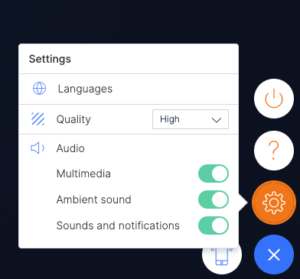
Within the settings menu, they can customize their gameplay experience. They can change the language, select the playback quality (high, medium, or low—useful if you experience performance issues), and adjust audio options by enabling or disabling ambient sounds, notifications, or multimedia content.
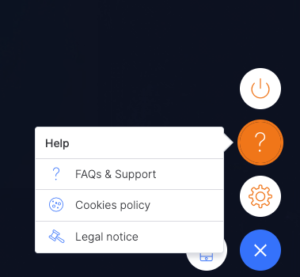
Remember that they can access the help button at any time to consult the frequently asked questions (FAQs) or request support if they have any questions or encounter any issues during the game.