
Class progress overview
View progress in a class
Tracking how your students are progressing and accessing progress reports allows you to closely monitor the progress and connections of your employees. Use this information to tailor your communications to them and promote your training plan.
Steps
To view the progress of a class, follow these steps:
- Click on the “Classes” button on the left-hand side menu of Admin.
- Click on the name of the class you want to see.
- Click on the “Progress” tab.
There, you will be able to view the following information:
- Not yet started: students who have not yet started the game.
- Finished: students who have already completed the course.
- Played in the last week: number of students who have played in the last 7 days from the moment the chart is generated.
- No activity in the last week: number of students who have not played in the last 7 days, regardless of whether they played previously or not.
You will also be able to see the completion rate, which represents the percentage of students who have finished the game compared to those who have started it.
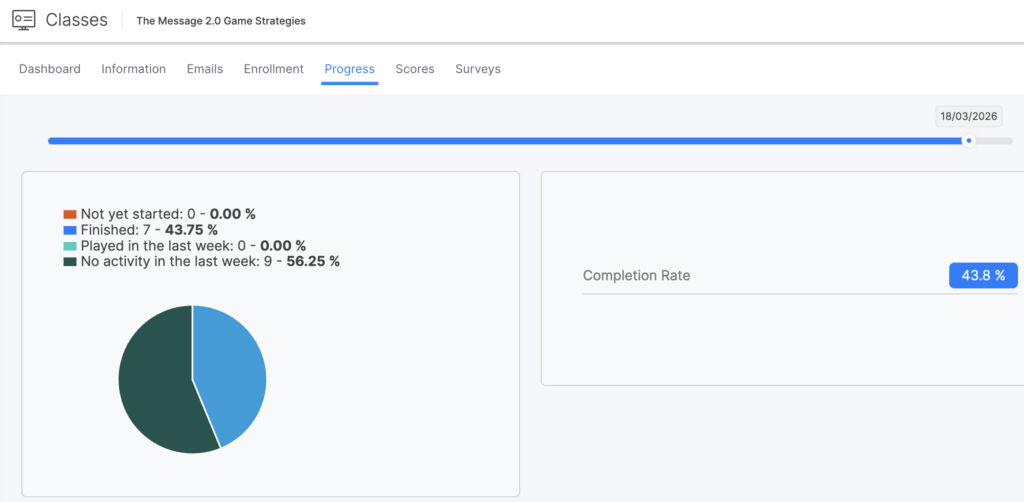
Note: you can use the bar at the top to move forward or backward and select a specific time period to display.
Download progress within a class
To download progress in a class, follow these steps:
- Click on the “Classes” button on the left-hand side menu of Admin.
- Click on the name of the class you want to see.
- Click on the “Progress” tab.
- Use the “Show” filter to display as many students as possible. You can display up to 250 rows.
- To download this information, click the arrow-shaped icon on the right side of the screen. Note that only the data available on the current page will be downloaded.
- Save the CSV file on your device.
View the individual progress of a student in a class
In Admin, you can also view detailed progress information for a specific student, including the duration and the number of sessions recorded.
Steps
To view the individual progress of a student in a class, follow these steps:
- Click on the “Classes” button on the left-hand side menu of Admin.
- Click on the name of the class you want to see.
- Click on the “Enrollment” tab.
- Click on the student’s profile.
- Click the three dots on the right side of the row for the course you want to check.
- Select the option “Show report”.
Note: You can also review individual progress from the “Progress” tab by clicking the graph at the far right of each row.
Download a student’s activity report in a class
The activity report that you can download from a course shows you the activity summary or “milestones” achieved by the student during the different levels of the course. This report allows you to check the approximate percentage of correct or incorrect answers a student got during the game.
Steps
To download the activity report, follow these steps:
- Access the class in which the student is registered.
- Go to the “Enrollment” tab.
- Select the student using the box on the left.
- Click on the three little dots at the top (between the options “Cancel enrollment” and “Cancel selection”).
- Note: Not to be confused with the three dots next to the student’s name.
- Click on the “Download activity report” option.
| ℹ️ When you click “Download”, a compressed file in ZIP format will be downloaded and saved. Open it to get the PDF document containing the required data. |
